
When you’re working in a fast-paced and lean SaaS team environment, your day likely revolves around Slack for essential decisions that can shape the future of the company.
But despite its benefits, this communication tool can become hectic if you don't set up the right integrations to manage tasks and projects in Slack.
In this guide, we’ll share nine ways that SaaS teams can bring flow to Slack communications.
1. Transform Direct Messages Into Actionable Tasks
Important requests buried in DM conversations
We have all been there. An external collaborator or important internal stakeholder messages you, "Hey, can you pull the social campaign data for Q3?"
Then, three other people message you in the #marketing-channel chat, another team member pings you in a thread with a similar request, and that initial request scrolls off your screen.
When you’re running a high-performing team, it’s easy for direct messages and other threads in Slack to require action but lack accountability. There is no due date or visibility for the rest of the team.
Tracking Tasks with Slack Lists
Did you know you can also use the Slack Lists tool for quick task tracking? While manual, it's a simple way to keep your lean team moving.
Step 1: Start a List
Begin by jumping into the relevant channel where you want to start tracking tasks with certain team members, then:
- From the Home tab, click Files in your sidebar.
- Click the plus button in the top right and select List.
Step 2: Assign Tasks and Add Context
Next, list the tasks you want to track in one column, and use another "People" column to assign each item. You can add emojis to make it fun, for example, "🗓️ Due: EOD Friday".
Step 3: Pin the List
Now pin it to the channel for easier access so anyone on the team can find it in a few clicks by navigating to the top of the channel and pushing the pushpin icon.
Step 4: Use Threads for Updates
Keep your main channel clean and organized by directing all chat about the list to a thread. Team members can reply right under the main message to provide status updates, ask questions, or celebrate when their assigned tasks are complete.
Tracking Tasks with Chaser
The fix is to capture the request as soon as it occurs, without leaving the conversation. To have that type of functionality, you need a tool like Chaser.
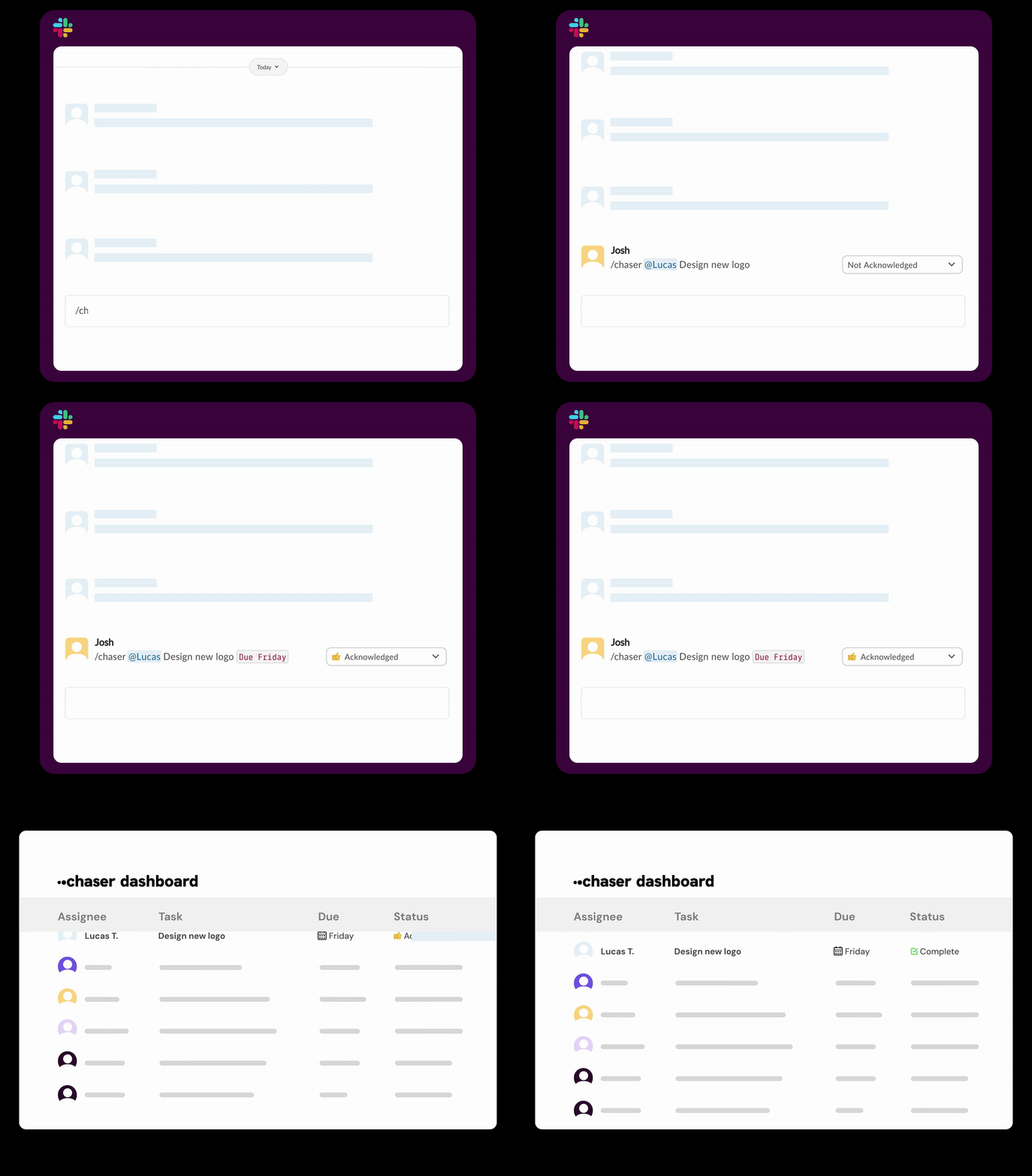
You can simply type /chaser directly in the conversation to create a task for yourself or your colleague. You can add a due date immediately, too. Here’s an example: “/chaser gather social campaign data for Friday.”
When you assign a task to a colleague, they’ll receive a notification to acknowledge this new task request. This way, Chaser handles the follow-ups and confirmations so you don’t have to micromanage.
2. Automate Follow-ups Without Being "That Person"
Manual follow-ups damage relationships and waste time
When you’re working in a lean SaaS team, everyone is hyper-focused on the company’s growth. So, it’s typical for various team members to lead different projects.
The project manager may assign a task to a developer or a content writer, and then you have to set a mental reminder to ping them two days later. Sometimes sending "Just checking in!" messages can feel passive-aggressive and lead to lower trust within teams. Plus, it’s a waste of time.
Using /remind command
Use the /remind command to set reminders for yourself or your team members. For example, typing /remind @alex to check the server logs in 2 hours, and Slackbot will send a one-time reminder to the individual. The trick here is to make sure the reminder is actioned on immediately, as their won’t be another follow-up after that.
Automatic Follow Ups with Chaser
Chaser handles those important follow-ups at the right time, without coming across as a burden.
With Chaser, the assignee gets a reminder:
- If they haven't acknowledged the task.
- 2 days before the task is due.
- On the day the task is due.
- If the task becomes overdue.
As an assigner, you’ll receive a notification if the task hasn't been acknowledged after 2 days or if it reaches its due date incomplete. This notification allows you to intervene only when necessary, rather than constantly monitoring Slack.
3. Turn Channel Conversations Into Organized Action
Tasks discussed but never formalized or tracked
Whether you’re launching a new feature, building a campaign, or analyzing financial models and discussing these details in Slack, it's easy for tasks to go unaccounted for.
Often, a decision is made in the channel only for it to slip through the cracks because there is no accountability attached.
Use Proper Slack Hygiene
When a simple DM or channel turns into a huge back-and-forth discussion, important information will get lost, it’s inevitable. The solution is simple: Slack Threads.
Take the time to remind your team about the importance of channel hygiene by replying in threads for every specific topic. This keeps the main channel view clean and allows people to catch up on the context that matters to them without scrolling through pages of noise.
Create Tasks in Conversations with Chaser
Context switching is the enemy of your team’s productivity. You want to manage the task where the conversation is happening.
By creating the task directly inside the channel (/chaser @Sam Create first draft of brand colors), the task becomes visible to everyone in that channel.
If a team member changes departments or goes on vacation, project and task visibility is still available to all stakeholders.
4. Ditch Unnecessary Meetings for Asynchronous Accountability
Status meetings consume time and are hard to schedule
While a standup meeting is supposed to be efficient, they’re notorious for droning on; teams spend time reciting what they did last week, which could easily be read asynchronously in Slack. On top of that, if you have a remote team operating in several time zones, this meeting time could be a nightmare.
Use Workflows for Accountability
If you have the time, one way to fix this problem is by building a Workflow in Slack that holds people accountable. This may looking like setting up a recurring workflow that posts a prompt in your respective meeting channels every morning at 9:00 AM. And asks, "What are your top 3 priorities today?". From there team members can weigh in and provide their updates.
Chaser’s Automated Reporting
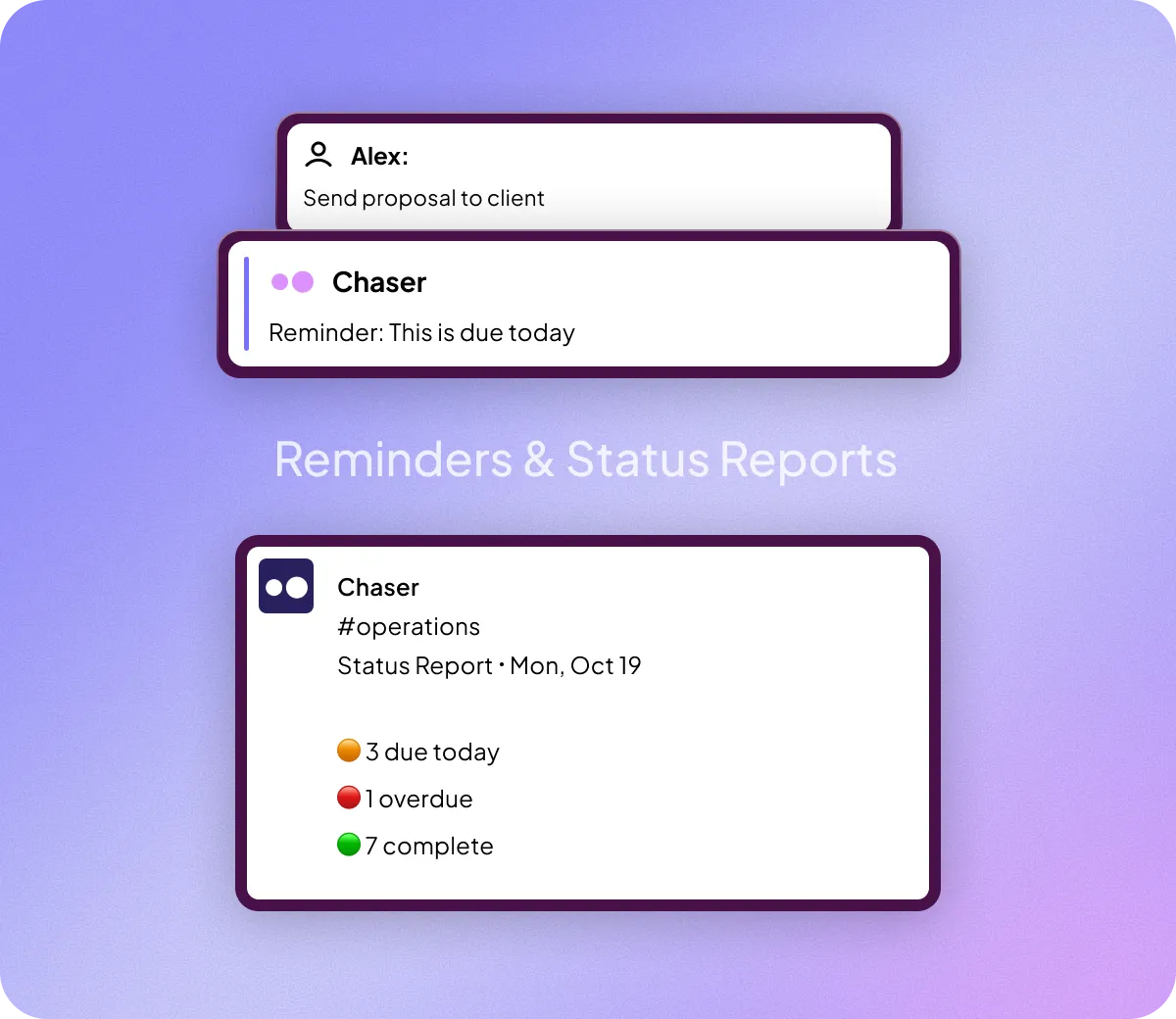
Instead of a meeting, empower your team to focus on their work while leveraging automated reporting. Chaser can automatically generate a status report for every channel.
By default, these posts will go out at 9:00 AM on Mondays, but they can be updated to align with your team's working cadence. The report highlights:
- Action Needed: Tasks that are overdue or unacknowledged.
- Progress: What was completed in the last week.
- Upcoming: What is on the docket for this week.
- Date Changes: Any deadlines that were pushed back.
5. Track Time Without Additional Tools (Optional)
Time tracking tools add friction and reduce adoption
The last thing you want to do to your lean team is make them feel like you’re monitoring their every move. That said, sometimes, time tracking for tasks is non-negotiable.
It can be demotivating to request time tracking from a team member who performs well, and it can be even harder if you require them to open a separate time-tracking app and log their hours. It’ll be a constant battle.
In-Slack Time Tracking with Chaser
When your team is running fast and shipping daily, the best time tracker is the one that works right within Slack. Chaser allows you and your team to easily log time in three ways directly from the task message:
- Dropdown: Select "Log Time" and enter hours/minutes.
- Edit: Update the total time spent.
- Completion: When a task is marked as done, the bot prompts the user to log the final time.
6. Collaborate Seamlessly With Clients & Partners
Can't force clients/vendors to adopt your tools
SaaS companies rarely operate in siloed organizational structures, and for good reason. You might even have other ad agencies, dev shops, or freelance designers with Slack Connect. So, what happens when you want to assign them work? You can't force a vendor to buy a seat on a separate project management tool, and they likely won't check it even if you do.
Stick To Slack Connect
Slack Connect has been a game-changer for cross-organization collaboration and partner engagement. As your SaaS platform grows, more integrations become possible. So, having these partners connected via Slack Connect will make collaboration seamless.
Tracking Client Work in Slack with Chaser
The best solution here is to keep the task management in the channels where the conversations are already happening, which Chaser seamlessly does inside your Slack Connect channels.
You can begin by assigning a task to a vendor, just as you would to an internal employee. The vendor doesn’t need to install Chaser or pay for an account. They’ll simply interact with the messages in the chat. Chaser even allows these external partners to use the dashboard and basic features for free.
7. Organize Tasks Beyond Channel Structure
Work doesn't always align with channel organization
Slack channels usually have a logical structure. However, sometimes work spans across multiple channels. A "Q4 Product Launch" might involve tasks in the sales, marketing, and engineering channels. If you only look at channel-based views, you miss the big picture of the project.
Slack Canvas To The Rescue
Enter Slack Canvas to help you solve your task problems. Every channel and DM has a "Canvas" tab, located in the top right corner of the app. It’s basically a blank whiteboard to ‘canvas’ your ideas, notes, tasks, and other important running lists, all within Slack.
Stay Organized with Tags
Chaser’s tagging system that overlays your channel structure. When creating a task, you can add a tag like +priority or +Q4launch to help track these cross-channel tasks—ultimately, making it easy for your stakeholders to stay accountable and ship what they need.
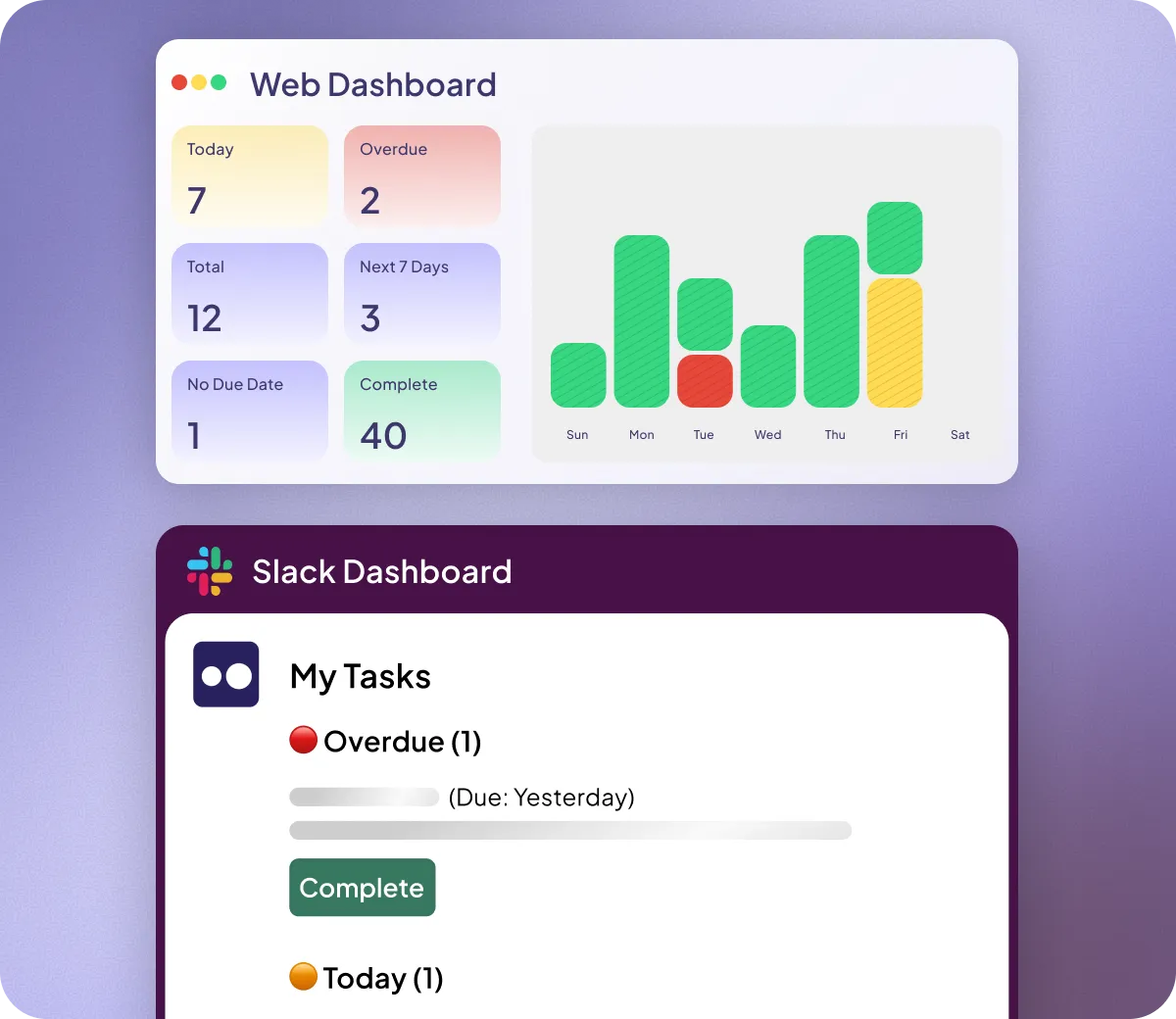
You can do this in the dashboard or simply by typing +launch when creating the task in Slack. You can then filter your dashboard to show all functions with the launch tag, regardless of which channel they live in.
8. Using Automated Checklists for Recurring Workflows
Repetitive processes are prone to missed steps
Scaling a SaaS company requires moving from "hero mode" (where one person remembers everything) to "system mode" (where processes are documented).
With fewer hands on deck, the risk of errors increases as team members juggle multiple responsibilities. These errors lead to serious inefficiencies for everyone on the team, and the lack of standardization can make scaling a challenge.
Chaser’s Repeating Tasks and Checklists
For standard operating procedures, document once and set recurring tasks and checklists for later.
Repeating Tasks
Suppose the sales team needs to update the CRM every Friday, type /chaser @channel Update Salesforce every Friday. The AI will detect the frequency and automatically set up the recurrence.
Checklists
For complex workflows, like a marketing campaign or product feature launch, we recommend creating a saved checklist template. You can even use variables like "Product Owner" or "Launch Date."
When you trigger the checklist (using something like /chaser product launch), the system prompts you to fill in the variables, then automatically creates and assigns all 10+ sub-tasks to the right people, with due dates calculated relative to the launch.
9. Tie Personal Accountability for Group Tasks
Group accountability often means no accountability
The "Bystander Effect" is real and can permeate your Slack communications.
If you tag @channel and say, "Can everyone please fill out the engagement survey?" only about 20% do.
Why?
Because everyone assumes someone else is handling it and providing the requested information or resources. And tracking who has and hasn't done it is a manual nightmare that no team member on a small team is responsible for.
User Groups Help Streamline Communication
Stop tagging @channel or @here and disrupting everyone's workflow. Instead, create User Groups.
A quick Slack hack is to go to the "People & User Groups" section in your sidebar and create groups for the specific teams you want to notify, like @marketing-team. That way, when you mention that specific handle, the relevant team or group will be notified, without interrupting everyone else.
Assign To Groups with Chaser
To drive action and keep the right people accountable without group overwhelm, you can easily assign a single task to multiple people or an entire channel (for example, /chaser @channel Fill out benefits survey).
Unlike a simple message, this type of task assignment in Slack creates a unique task instance for every single person in that channel. And chaser tracks completion individually.
Final Thoughts
Whether it is automating follow-ups or systematizing everyday tasks with checklists, don’t bog down your high-performing team with manual task and project tracking.
Use tools like Chaser to manage communications and tasks from within Slack, where these revenue-driving decisions happen.
Try Chaser for free and start turning conversations into action today.